






 Innstillinger
 Rask levering
 Gratis frakt
 Incoterms
 Betalingstyper


 Markedsplass-produkt


Creating an Order Straight from a Quote
It’s a tale as old as time: You’ve been tasked with creating a quote for a big project your team is working on. You’re relieved when you’ve completed the grunt work, creating the quote with perfect part quantities and lead times. Now comes the time-consuming part – adding all those parts to a cart and ordering them. It’s most likely not an issue if your quote contains only a few SKUs, but what if it contains 50, 100, or 1000?
Luckily, registered My DigiKey users can use the Quote Manager tool to add all products in a quote right into a new or existing cart! As a bonus, the process is simple; keep reading to find out more.
Step 1: Log into your My DigiKey Account and Select Quote Manager
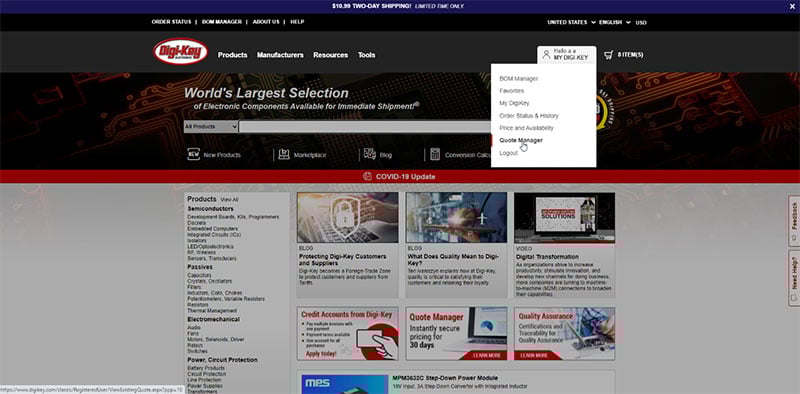
The Quote Manager tool can be accessed right from DigiKey’s homepage.
Step 2: Use a Quote ID to Select Your Quote
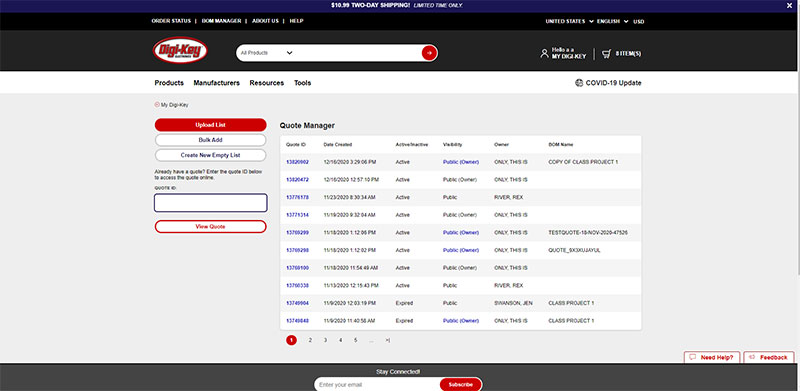
You can either find the quote in your list or copy the ID and paste it into the Quote ID box on the left.
Step 3: Finalize Any Changes and Add to Cart
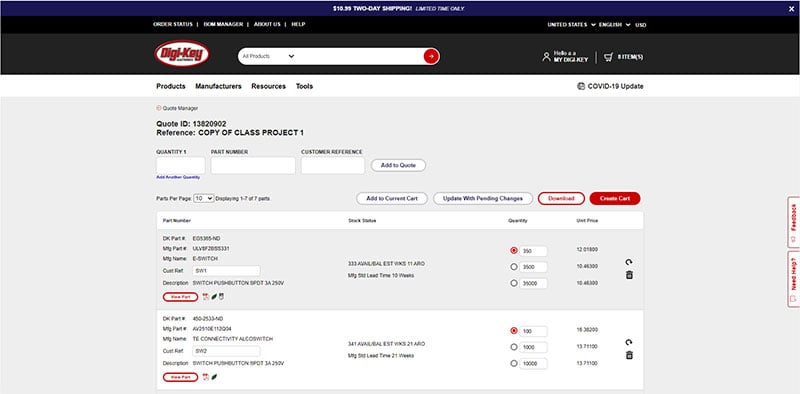
Once you are in your selected quote, you’ll have the ability to make any last-minute changes such as adding new parts, updating quantities, or removing obsolete/out of stock items. When you’re satisfied with your quote, simply click Create Cart to create an order for all your quoted parts. If you’re ordering from multiple quotes, you can also click Add to Current Cart to combine multiple orders.
Step 4: Checkout
That’s it, you’re ready to submit and process your order!
We know your time is valuable, that’s why we’ve worked hard to create tools to help you get the products you need, when you need them. The next time you create a quote, just think about all the time you’ll save by not having to go through and add them all to cart. What are you planning to do with all the time you’ve saved?

Have questions or comments? Continue the conversation on TechForum, DigiKey's online community and technical resource.
Visit TechForum









 Norge
Norge